Screen Shots
 |
Main Window |
| |
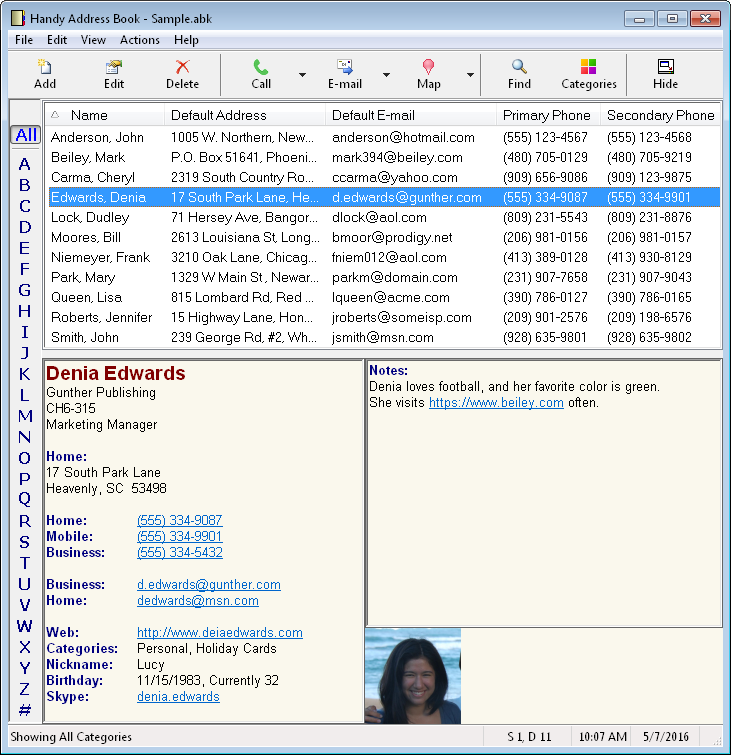
| The main window has an address list on the top, an alphabet
filter bar along the left, and a details window on the bottom.
You can select one or more buttons on the alphabet bar to show
addresses beginning with the selected letters. The address
list can be sorted by any column, just click on the header.
You can choose which data fields are displayed in the address
list. The details window shows all the recorded
information for the selected address. You can double click
on a phone number to quickly dial it. All the fonts, background color,
picture size and location are user
adjustable. |
| |
 |
|
Address Editor - General Page |
| |
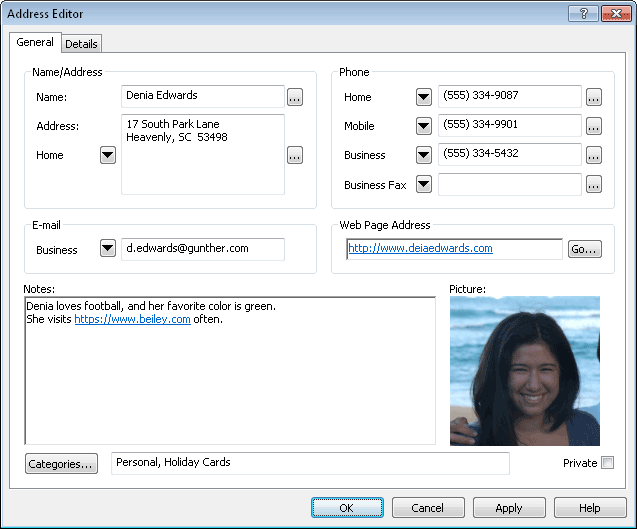
| The address editor has 2 pages.
The General page is shown above. Each address can have up
to 3 mailing addresses, 3 e-mail addresses, and 12 phone
numbers (each field label is customizable). To change the displayed field, choose the down
arrow to the left. Addresses can be assigned to
categories, and you can then filter the displayed addresses
based on category. Addresses can be marked as private, and
optionally password protected. An optional picture can be
assigned. |
| |
 |
Address Editor - Details Page |
| |
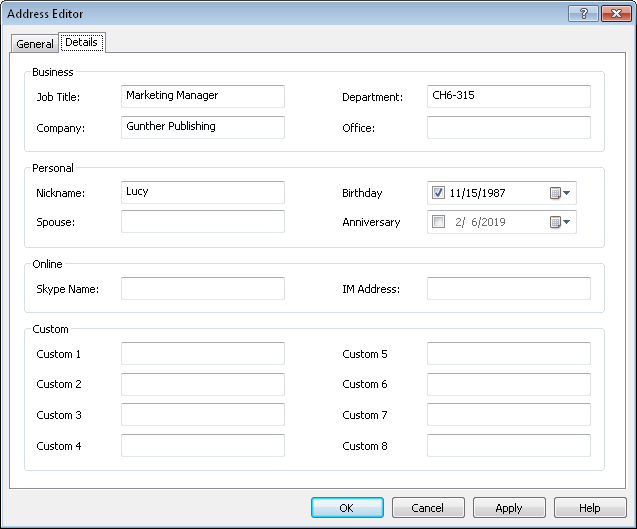
| The Details page of the address
editor shown above illustrates the additional fields available
for each address. |
| |
| Handy Address Book has many
other features available. The
program's online help is also available for more detailed
documentation. You can evaluate
Handy Address Book for free by obtaining a copy from
the download page. After evaluation of the program, to purchase
a licensed copy, go to the purchase page. |
|