Screen Shots
 |
| Month Calendar View |
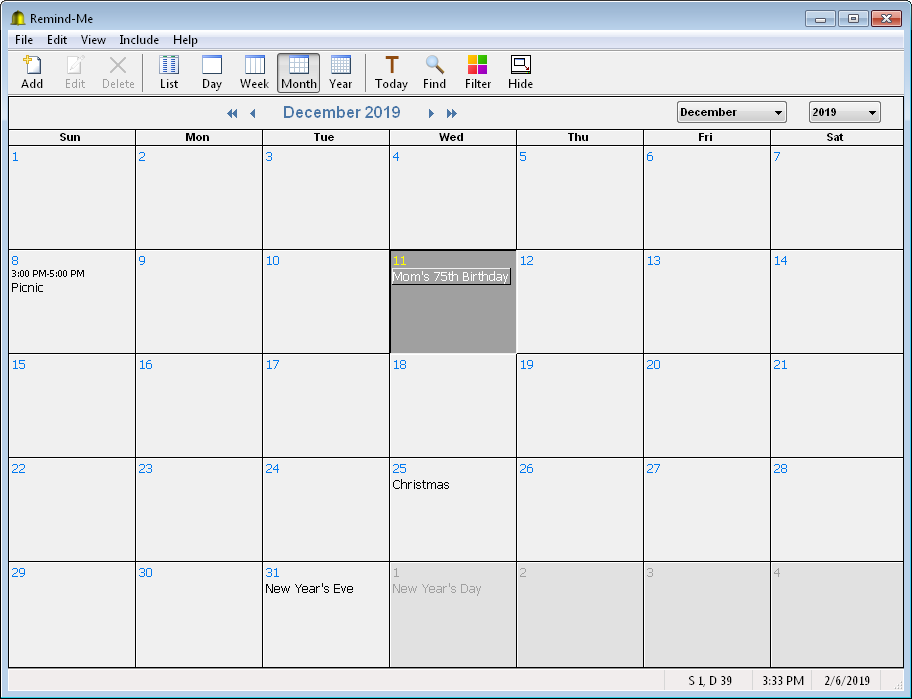
| This screen shot shows the month view after the mouse
has been clicked on the 11th of December. (The mouse
was not captured in the screen shot.) You can
customize any of the fonts or colors used in this calendar
under the File/Options... menu
command. The size of the selected day
expands to show the full title of the event. In
this case the mouse is positioned over "Mom's
75h Birthday", so this event is being
displayed as selected. By clicking on the event
from this point you can edit all the details of
this event. |
| |
 |
| List View |
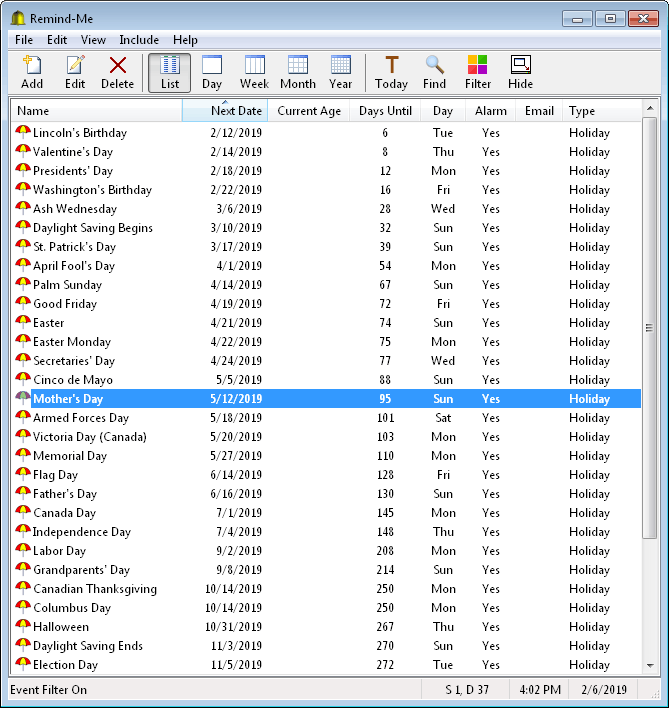
| This screen shot shows Remind-Me in the list view mode.
For this example, only holiday events are being listed.
Remind-Me has built-in support for all of these
holidays. You can add or import your own holidays, delete
or modify the initial built in holidays. The list
can be sorted in either ascending or descending
order based on the data in any column by clicking
on the column header with your mouse. The list as
shown is being sorted by "Next Date",
notice the small sort arrow in this column's
header. |
| |
 |
| Month and List View |
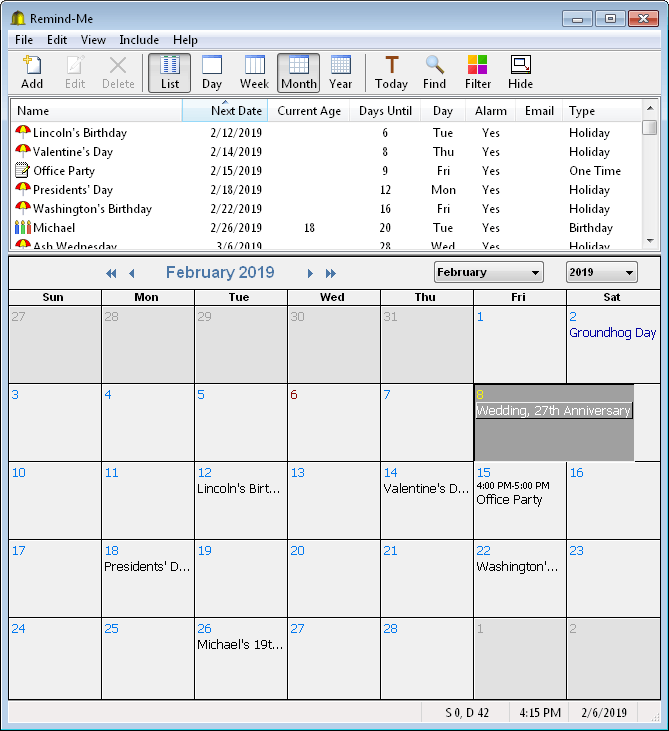
| Both the calendar and list views can be shown at the same
time. Clicking on any event in the list view will
zoom the calendar view to that date. The current
and selected date are labeled in different
colors than other days for quick reference. Events that
you mark as complete are considered "acknowledged" and can be
displayed in a different color. For example, the
"Groundhog Day" event on February 2nd is blue because it was
acknowledged already. |
| |
 |
| Day View |
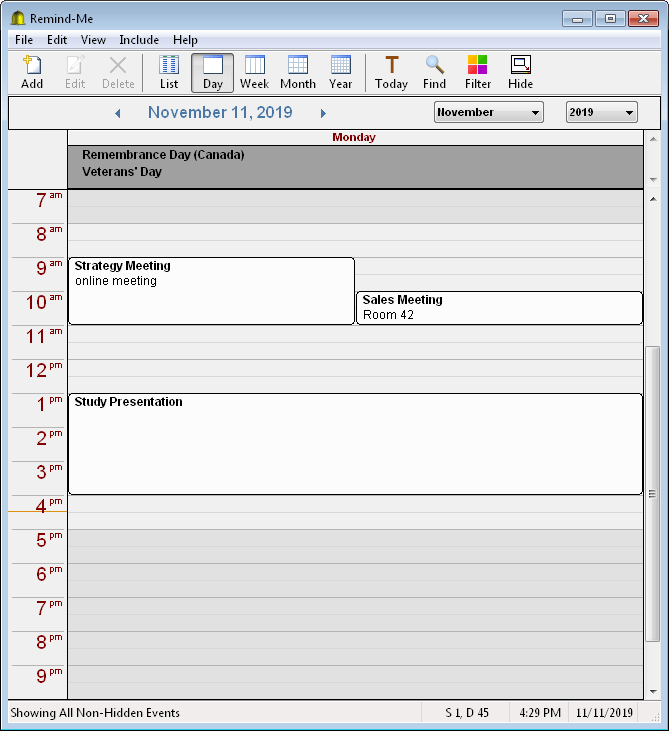
| The Day and Week calendar views display all
non-timed events along the top, and then the timed events
beneath. Events can be edited using your mouse.
Click and drag an edge or a whole event to modify the event.
The current time is displayed graphically along the left side
(notice the orange bar near 4:30), and also numerically in the
status bar. All fonts/colors are adjustable, as well as
the grid size (30 minutes in this picture). |
| |
 |
| Week View |
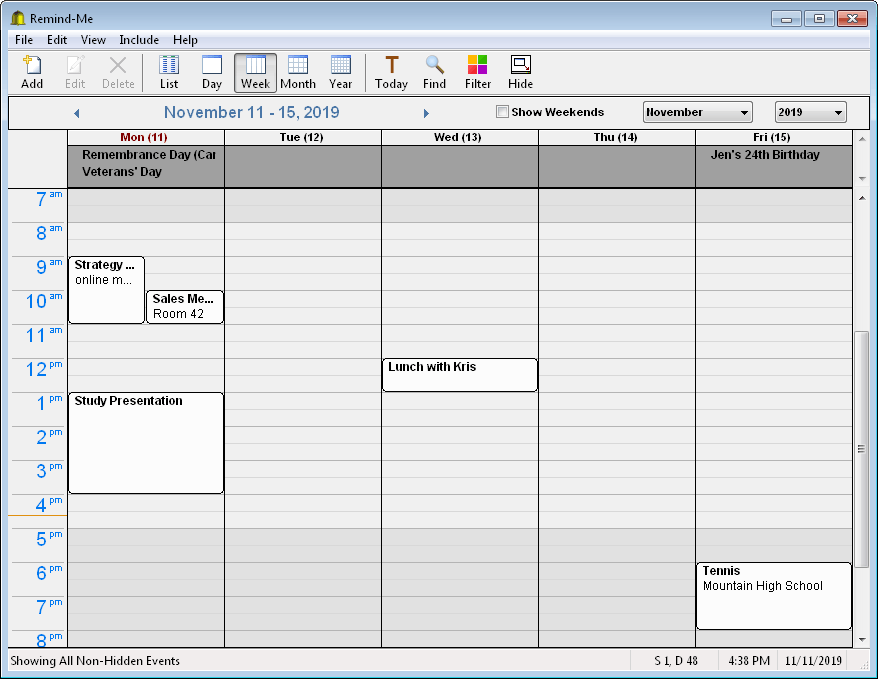
| The week calendar view is similar to the day
view, but shows a whole week at a time. The option "Show
Weekends" is available to add weekends to the calendar.
The workday is shaded a different background color. The
work hours and time grid can be specified under "File /
Options... / Other". |
| |
 |
| Year View |
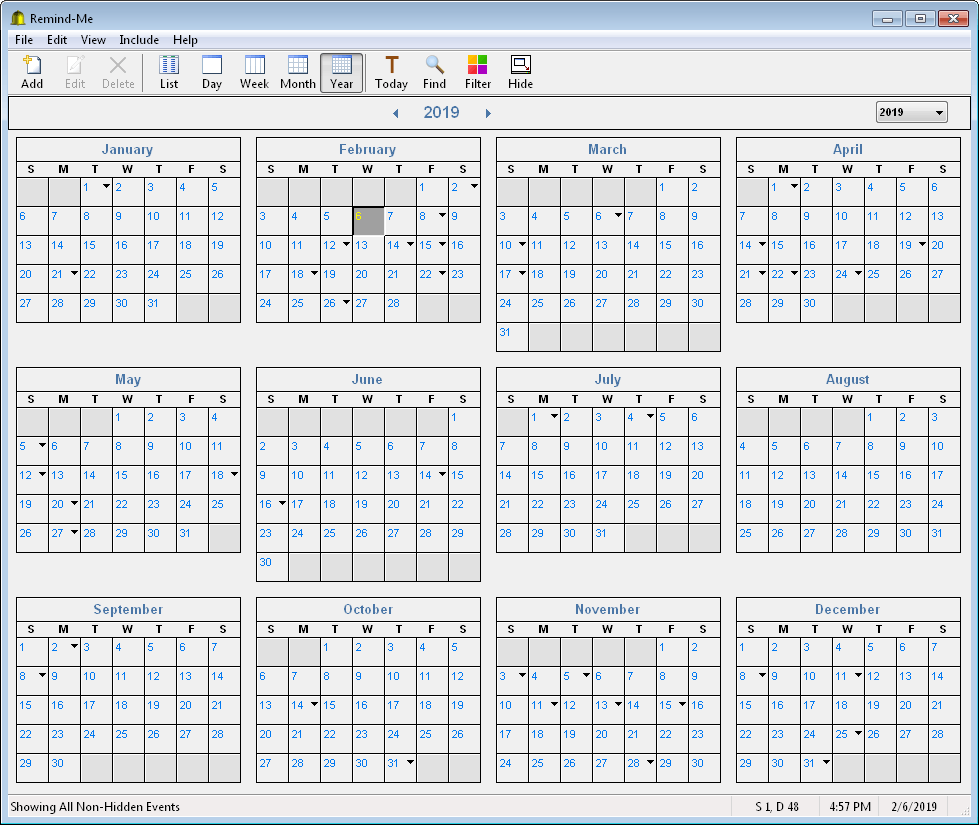
| This screen shot shows Remind-Me's year view. An entire calendar
year is displayed. When there is insufficient
space to label events in any of the days on the
calendar, a small down arrow is displayed.
Clicking on this arrow will expand the size of
that day so the entire event title can be viewed. |
| |
|